Your café, sorted
the moment you sit down.
CafeCheckIn lives in your menu bar. Open it and it already knows the café you're in, the weather outside, and the WiFi password — then quietly keeps a map of every spot you love to work from.
Là Việt
in one tap
Everything about the spot, before your laptop wakes up.
One click on the cup in your menu bar. No searching, no typing, no asking the barista for the password.
Knows where you are
Opens to the exact café you walked into — name, type, and distance. Wrong guess? Pick from nearby or add it yourself in two taps.
Weather at a glance
Live temperature, what it feels like, and the sky outside — so you know whether to grab the window seat or the corner away from the door.
WiFi, remembered
Save the password once — it's tucked safely in your Keychain. Next visit it's right there, masked, one tap to reveal or copy.
Rate it like a regular
WiFi speed, power outlets, noise, quiet-enough-for-calls. The four things that actually decide if a café is worth a working session.
Your personal map
Every check-in is logged with the weather, your ratings, and a note. Build a private list of the best places you've ever worked from.
Snap & remember
Took a photo on your iPhone? Paste it straight in with ⌘V — it syncs over and saves with the visit. No uploads, no cables.
Get CafeCheckIn for Mac.
A single tiny app in your menu bar. Drag it to Applications and you're done — it'll greet you the next time you sit down for a coffee.

Buy me a coffee
Quét MoMo để mời mình ly cà phê.
Blocked on first open? That's normal — here's the 30-second fix.
Because CafeCheckIn isn't sold through the App Store, macOS Gatekeeper stops it the first time. Apple hides the "Open Anyway" button deep in Settings, so most people get stuck here. Follow these four steps once and you'll never see this again.
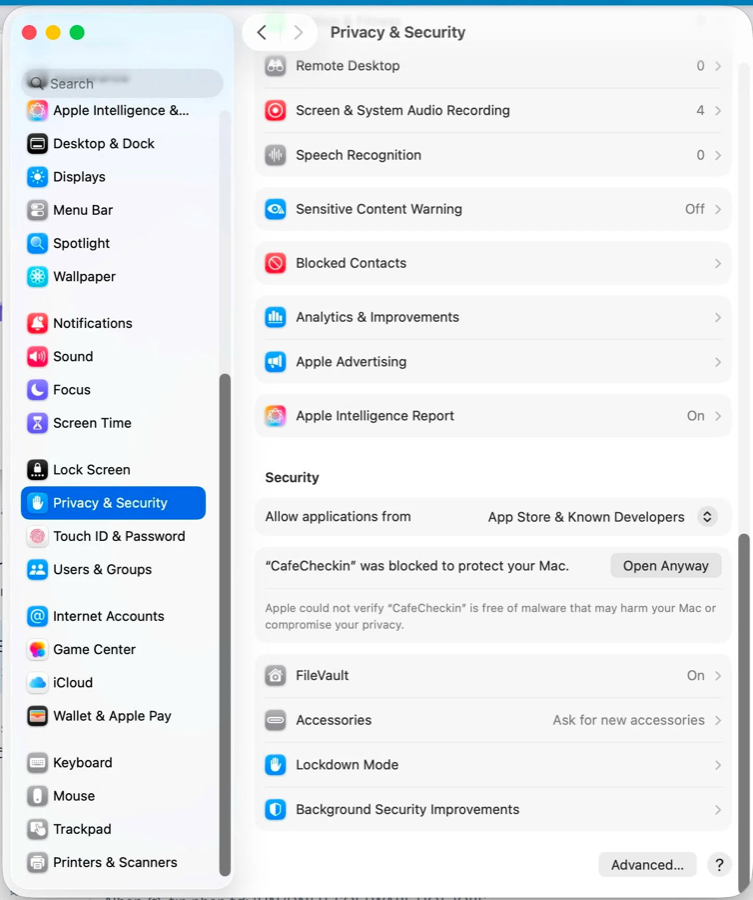
Open Settings → Privacy & Security
Launch System Settings, pick Privacy & Security in the sidebar, then scroll all the way down to the Security heading.
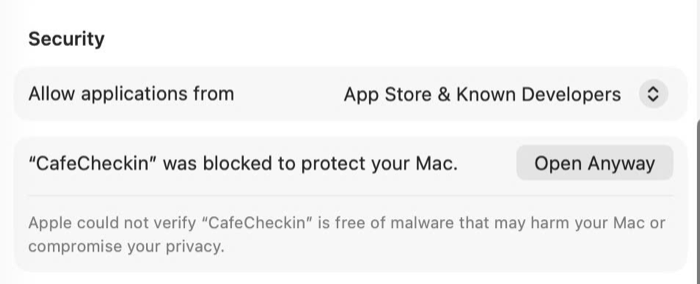
Click "Open Anyway"
You'll see "CafeCheckIn" was blocked to protect your Mac. Click the Open Anyway button on the right. Authenticate with Touch ID or your password if asked.
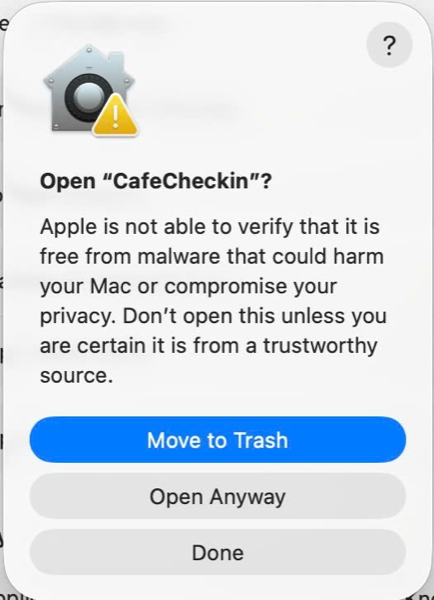
Confirm in the pop-up
A final dialog appears. Click Open Anyway to launch the app. macOS remembers this — you won't be asked again.
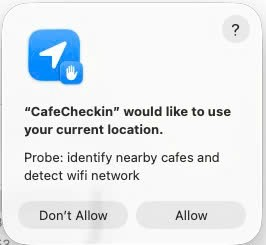
Allow location
Tap Allow when CafeCheckIn asks for your location — that's how it finds the café you're in and detects the WiFi. It never leaves your Mac.